My Kindle Paperwhite 7 has been sitting on my desk showing me the weather for over a year now. Three-hour refresh cycle, weeks on a single charge, zero fuss. I wrote about that whole build back in February 2025, and it’s still one of my favorite projects.
But here’s the thing: after that post went live, I started getting messages. People wanted to display Home Assistant panels. Grafana dashboards. Family calendars. Hacker News headlines. Turns out “old Kindle as a dashboard” is a much bigger idea than just weather.
So I went down the rabbit hole. I tested different approaches, looked at what the community has built, and compared the whole spectrum from “jailbreak it yourself for free” to “just buy a purpose-built e-ink display.” This is everything I learned.
TL;DR
- Any jailbreakable Kindle (5th gen or newer, firmware below 5.18.1) works as an e-ink dashboard
- Three approaches: DIY jailbreak (free, most flexible), TRMNL-Kindle client (easiest), or Home Assistant screenshot method (best for HA users)
- Battery lasts 2-4 weeks with 30-minute refresh intervals, longer if you refresh less often
- You need a server to render the dashboard image (a Raspberry Pi, mini PC, or your existing homelab)
- If you don’t want to jailbreak anything, dedicated e-ink displays start at $39
Why e-ink makes a weirdly good dashboard
LCD screens are great for Netflix. They’re terrible for a thing that sits on your wall showing you the same five numbers all day. E-ink is the opposite: it draws power only when the image changes, looks like paper in any lighting, and doesn’t blast your retinas at 3am when you stumble past it in the dark.
E-ink screens use roughly 0.5-1W during a refresh cycle (WiFi on, fetch image, update screen) and effectively 0W between refreshes. Compare that to a tablet running a browser with the display on, which idles at 2.5-5W continuously just to show a static page.
The aesthetic is also underrated. An e-ink display mounted on a wall looks like a framed print, not a glowing rectangle. My wife didn’t even notice mine for three days. New objects quietly appearing around the house is so close to baseline now that a Kindle pretending to be a framed print just blended in. Highest compliment a homelab project can get.
Which Kindles actually work
Not every Kindle can become a dashboard. You need one that’s jailbreakable, which means firmware below 5.18.1. The WinterBreak jailbreak (released January 2025) works on 6th generation and newer devices.
Here’s the quick compatibility rundown:
| Model | Screen resolution | Jailbreakable | Notes |
|---|---|---|---|
| Kindle 4 NT | 600x800 | Yes | Oldest supported, lowest resolution |
| Kindle Paperwhite 2 (PW2) | 758x1024 | Yes | Sweet spot for cheap used units |
| Kindle Paperwhite 3 / 7th gen | 1072x1448 | Yes | 300 DPI, what I use for my weather dashboard |
| Kindle Paperwhite 11th gen | 1236x1648 | Check firmware | Must be below 5.18.1 |
| Basic Kindle (2024) | 1072x1448 | Check firmware | Cheapest new option at $110 |
The best deal is a used Paperwhite 2 or 3. They go for $20-40 on eBay, the screens are sharp enough for any dashboard, and the firmware is almost always old enough to jailbreak. The previous-gen Paperwhite ($82) is also available new if you want a clean unit.
Pro tip: Before buying a used Kindle, ask the seller for the firmware version. If it’s 5.18.1 or higher, you can’t jailbreak it (yet). The community is always working on new exploits, but there’s no guarantee.
Three approaches, compared
After testing and researching, I’ve narrowed it down to three viable approaches. Each one fits a different skill level and use case.
| DIY jailbreak + custom server | TRMNL-Kindle client | Home Assistant screenshot | |
|---|---|---|---|
| Cost | Free (if you have a Kindle + server) | Free self-hosted, or $5/mo TRMNL subscription | Free (requires HA instance) |
| Difficulty | Medium (jailbreak + shell scripting) | Easy (follow 27-step guide) | Medium (Docker + HA config) |
| Flexibility | Full control, display anything | Limited to TRMNL plugin ecosystem (900+ plugins) | Anything HA can render |
| Server needed | Yes (Pi, mini PC, or Docker host) | Optional (TRMNL cloud or self-hosted) | Yes (your HA server) |
| Battery life | 2-4 weeks (depends on refresh rate) | 2-4 weeks | 2-4 weeks |
| Best for | Tinkerers who want total control | People who want it working in an afternoon | Existing Home Assistant users |
Approach 1: DIY jailbreak + custom server
This is what I run. You jailbreak the Kindle, install Pascal’s kindle-dash client, and point it at any server that returns a PNG image. The client handles sleep/wake cycles, WiFi management, and screen refreshes. Your server handles everything else.
I covered the full setup in my Kindle Paperwhite revival post, including the jailbreak process, SSH key gotchas (use ssh-rsa, not ssh-ed25519), and the power management headaches with rtcwake. Rather than repeat all that here, I’ll point you there for the step-by-step.
The key insight from running this for over a year: the client side is basically solved. Pascal’s kindle-dash works well. The interesting part is what you put on the server. More on that in the next section.
Approach 2: TRMNL-Kindle client
TRMNL makes a dedicated e-ink dashboard device ($139), but they also released an open-source Kindle client (336 stars on GitHub) that turns your jailbroken Kindle into a TRMNL display.
The setup is a 27-step process (jailbreak, post-jailbreak config, TRMNL extension install), but it’s well-documented. You can use TRMNL’s hosted platform with 900+ plugins (weather, calendar, Hacker News, GitHub stats, smart home feeds), or point the client at your own server for a fully self-hosted setup.
If you just want something working fast and don’t care about writing your own rendering code, this is the path of least resistance.
Approach 3: Home Assistant screenshot method
If you’re already running Home Assistant, several community projects can render any HA dashboard to a Kindle-friendly PNG on a schedule. The most popular is sibbl’s hass-lovelace-kindle-4, which runs as a Docker container alongside your HA instance.
The idea is simple: Chromium headless takes a screenshot of your HA dashboard at your chosen resolution, converts it to grayscale, and serves it over HTTP. The Kindle fetches and displays it. You get to design your dashboard in HA’s visual editor, which is way easier than writing HTML by hand.
A detailed walkthrough of this approach is available at homecircuits.eu, where they documented a PW2 + Raspberry Pi 5 setup getting 2-3 weeks of battery life with 30-minute refreshes.
What to actually display on it
The technical setup is just the plumbing. Here’s what people are actually putting on their Kindle dashboards:
Weather (what I run): Current conditions, hourly forecast, daily forecast, air quality. I use Environment Canada’s API and render it with Playwright + Sharp. The backend is open source (linked from my original build post) if you want to fork it for your own weather provider.
Home Assistant panels: Temperature sensors, door locks, energy consumption, camera snapshots, light status. Anything HA can show, you can screenshot. The e-ink constraint actually forces good design here: you can’t cram 40 widgets onto a 6-inch grayscale screen, so you pick the 5-6 things you actually care about.
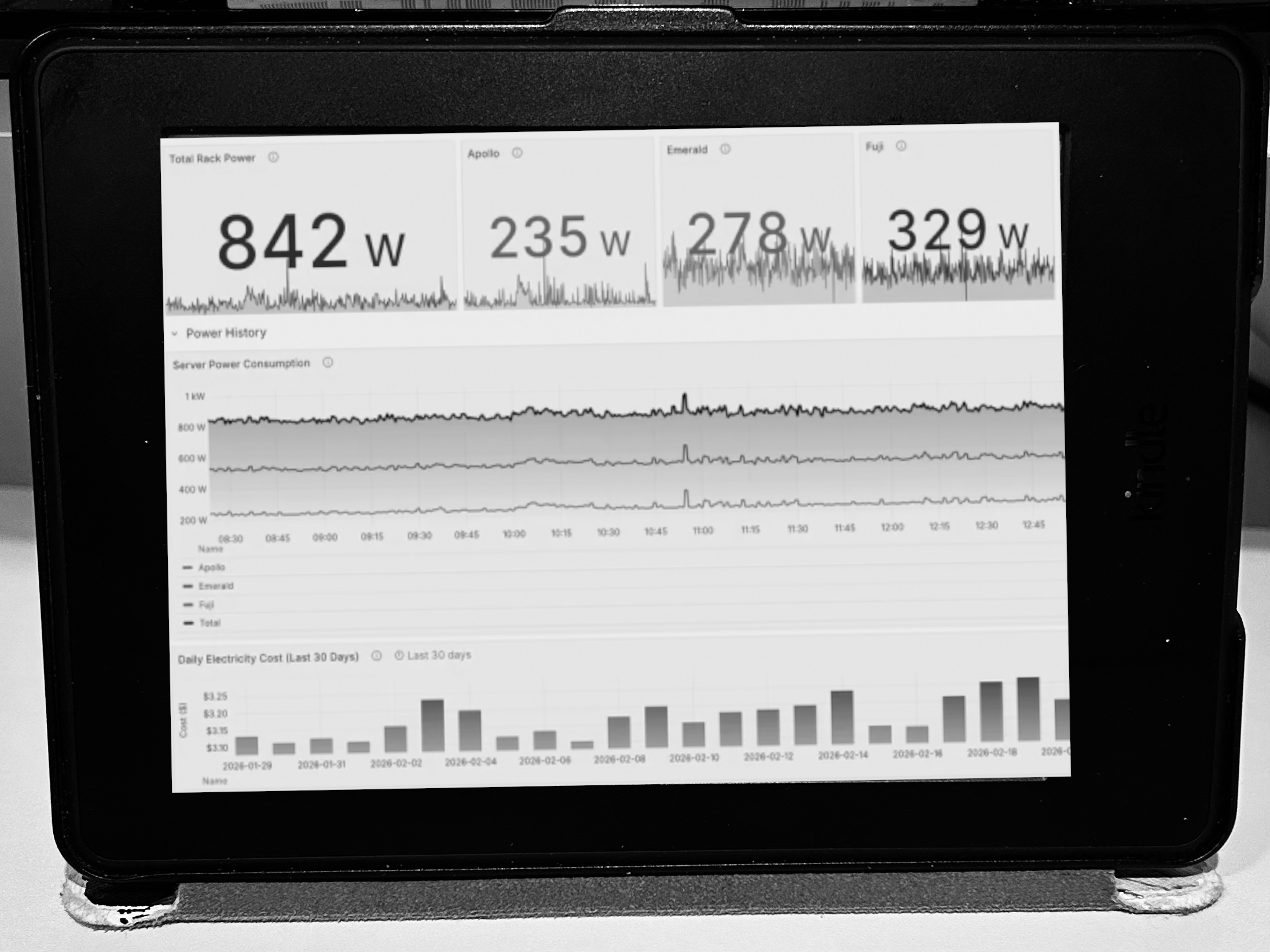
Homelab monitoring: Grafana panels rendered to PNG showing CPU load, memory usage, container status, network throughput. Grafana’s image renderer can produce Kindle-sized PNGs on a schedule. The old plugin was deprecated in Grafana 13, but the standalone Docker rendering service works the same way.
Family calendar: Google Calendar or Nextcloud Calendar rendered as an agenda view. A few lines of Python with the icalendar library, rendered to an image with Pillow or Playwright. This is surprisingly popular in the e-ink community, probably because a paper-like calendar on the kitchen wall makes intuitive sense.
I’ve also been meaning to build a Hacker News / RSS headlines view. Top 10 stories, refreshed every few hours. This was on my “maybe someday” list from the original post, and honestly I should just do it. The rendering is trivial (HTML table to PNG), and having a glanceable HN feed that doesn’t tempt me to open my phone sounds genuinely useful.
You’re not limited to one view, either. Pascal’s kindle-dash supports switching between different image URLs on each refresh cycle. Weather at 6am, calendar at 8am, homelab stats at noon, weather again at 6pm. I haven’t set this up myself, but the REFRESH_SCHEDULE cron expression in the client makes it straightforward.
The server: what actually runs this thing
Your Kindle is just a dumb display that fetches a PNG over HTTP. Something needs to generate that PNG. Here’s what I’d recommend based on what you already have:
Already have a homelab? Run the dashboard server as a Docker container on whatever you’ve got. The resource requirements are tiny: my weather dashboard server idles at 50MB RAM and barely touches the CPU except during Playwright renders. If you’re running a mini PC homelab, this is a rounding error.
Starting from scratch? A Raspberry Pi 4 or 5 is more than enough. You could also grab a cheap mini PC like the Beelink Mini S12 ($269), which gives you a proper x86 machine that can run Docker, Home Assistant, and the dashboard server all at once, and still have headroom for other projects. I’ve written about why mini PCs make great home servers if you’re new to this.
Don’t want to run a server at all? The TRMNL approach (Approach 2) can work with their hosted cloud platform. You lose the self-hosting angle, but you gain convenience.
The rendering pipeline is always the same regardless of server: generate or fetch data, render to HTML/SVG, screenshot with Playwright or Puppeteer, convert to 8-bit grayscale PNG at your Kindle’s exact resolution, serve over HTTP. My iPhone OCR server does something similar (render output to an image format), so this pattern comes up a lot when you’re repurposing old hardware.
What about just buying an e-ink display?
If jailbreaking sounds like too much hassle (or your Kindle’s firmware is too new), dedicated e-ink dashboard panels exist at every price point:
| Device | Price | Size | WiFi | Battery | Notes |
|---|---|---|---|---|---|
| ESP32 e-ink panel | $39 | 7.5” | Yes | Months | Bare board, requires programming |
| Waveshare 7.5” e-paper | $51 | 7.5” | No (HAT) | N/A | Pi HAT, wired to a Pi GPIO |
| reTerminal E1002 | $130 | 7.3” | Yes | Weeks | Color e-ink, ESP32-S3, ready to go |
| TRMNL | $139 | 7.5” | Yes | 2-6 months | Purpose-built, 900+ plugins |
| Jailbroken Kindle | $0-82 | 6-7” | Yes | 2-4 weeks | Free if you have one in a drawer |
The jailbroken Kindle wins on value if you already own one. The TRMNL wins on polish and battery life. The ESP32 panels win on flexibility if you’re comfortable with microcontroller programming. The reTerminal wins if you want color e-ink.
Are any of these practical? Debatable. Is having a paper-like display showing your homelab stats cool? Absolutely.
Gotchas I wish someone told me
After running a Kindle dashboard for over a year and reading through dozens of community builds, here are the things that trip people up:
Image format is everything. Your Kindle expects a specific resolution and color depth. The Paperwhite 7 needs 1072x1448 pixels, 8-bit grayscale, PNG. If you send the wrong dimensions or a color image, you’ll get a distorted mess or nothing at all. Run eips -i on your jailbroken Kindle to find your exact framebuffer specs. I documented this discovery process in my original post.
WiFi reconnection is the #1 reliability killer. If your router reboots or your ISP hiccups while the Kindle is asleep, it can get stuck in a dead WiFi state on wake. Build a retry loop with WiFi toggle into your client script. Pascal’s kindle-dash handles this, but if you’re rolling your own, don’t skip it.
Full refreshes vs. partial refreshes matter. Partial refreshes are faster and don’t flash the screen, but they leave ghosting artifacts after 3-4 cycles. Do a full refresh (the screen flashes black then white) every 4th update. The FULL_DISPLAY_REFRESH_RATE setting in kindle-dash controls this.
Battery drain is non-linear. The Kindle lasts weeks between charges, but the last 15% drains faster than you’d expect. Set up a low-battery notification (kindle-dash supports this) so you’re not surprised by a dead screen. Alternatively, just plug it in with a USB cable if you’re mounting it on a wall near an outlet.
Don’t use ssh-ed25519 keys. The Kindle’s built-in SSH daemon (Dropbear) on older firmware only supports ssh-rsa. I wasted two hours on this. You’re welcome.
Frequently asked questions
Will jailbreaking brick my Kindle? Unlikely if you follow the kindlemodding.org guide. The WinterBreak method is well-tested on supported models. That said, always check your exact model and firmware version before starting. A Kindle that’s too new to jailbreak won’t brick, it just won’t jailbreak.
How long does the battery last as a dashboard? With 30-minute refresh intervals: 2-3 weeks. With 3-hour intervals (what I run): 4-6 weeks. Plugged in via USB: indefinitely. The homecircuits.eu build measured 2-3 weeks with 30-minute refreshes on a Paperwhite 2.
Can I use a current-generation Kindle Paperwhite? Yes, if its firmware is below 5.18.1. The newest Kindle Paperwhite ($135) can work, but you’d need to check the firmware out of the box before Amazon auto-updates it. The safer bet for a dashboard project is a used older model.
Do I need to keep the Kindle plugged in? No. The whole point is that e-ink uses almost no power between refreshes. But if you’re wall-mounting it near an outlet, plugging it in means you never think about charging. A simple USB cable does the job.
Can the Kindle display color? No. All current Kindle e-ink screens are grayscale (16 shades of gray). Design your dashboard accordingly. Pure black text on white backgrounds looks the sharpest. The reTerminal E1002 and some newer e-ink panels do support color if that’s a requirement.
Resources
-
My projects: Original Kindle build post (jailbreak walkthrough, power management deep-dive, backend repo link)
-
Community projects: Pascal’s kindle-dash, TRMNL Kindle client, and sibbl’s HA Kindle dashboard are all linked in the approach sections above. For jailbreak instructions, start at kindlemodding.org.
-
Hardware
- Kindle Paperwhite (current gen, $135)
- Kindle Paperwhite (previous gen, $82)
- 7.5” ESP32 e-ink panel ($39)
- Beelink Mini S12 ($269) (if you need a server and don’t have one yet)
Happy hacking! 🔧
Last updated: May 2026