You don’t need a Mac Mini to run OpenClaw
Every blog post, every YouTube video, every Reddit thread about OpenClaw says the same thing: “just get a Mac Mini.” And I get it. The Mac Mini is compact, quiet, and runs macOS. But when I priced out the 24GB M4 config at $999 and realized I could never upgrade the soldered RAM, I started looking at what else is out there.
Turns out, you can get a mini PC with 32-96GB of upgradeable DDR5, dual 2.5G LAN, and full Linux flexibility for less money. The only thing you give up is iMessage integration. If you’re using WhatsApp, Telegram, Slack, or Discord as your primary channels, that’s not much of a sacrifice.
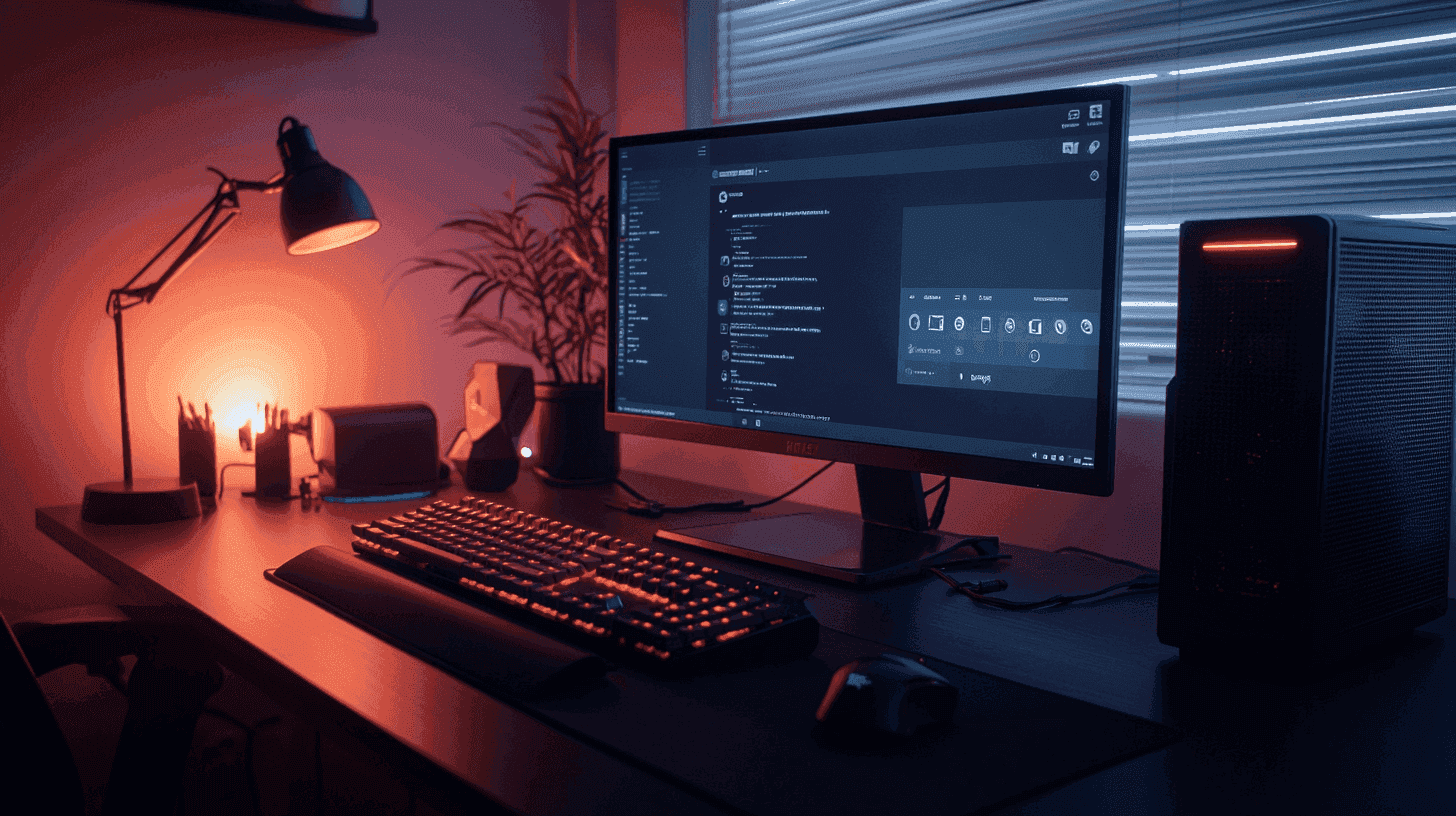
TL;DR — My picks for running OpenClaw:
- Best value: GEEKOM AX8 Max — 32GB upgradeable, $749
- Intel AI compute king: GEEKOM GT15 Max — 99 TOPS combined, $1,299
- RAM king: GMKtec EVO-T1 Ultra 9 — 96GB DDR5, ~$1,100
- Local LLM beast: GMKtec EVO-X2 Ryzen AI Max+ 395 — 64GB unified memory, $1,660
This article contains affiliate links. I earn a small commission from qualifying purchases at no extra cost to you.
Wait, what is OpenClaw?
If you haven’t been on tech Twitter for the past month, here’s the short version: OpenClaw is an open-source AI assistant that runs 24/7 on your own hardware. You talk to it through your regular messaging apps — WhatsApp, Telegram, Slack, Discord, Signal, even iMessage if you’re on macOS — and it actually does things for you. Reads your emails, manages your calendar, organizes files, runs shell commands. Think of it as having a personal intern who never sleeps and lives inside your group chat.
It started as “Clawdbot” back in November 2025, got renamed to “Moltbot” after Anthropic sent a trademark complaint, and then became “OpenClaw” three days later. The project went absolutely viral in late January 2026, partly because of how good it is and partly because the open-source community rallied around it hard.
The thing is, OpenClaw needs to run always on. It’s not something you fire up when you need it — it needs a dedicated machine that’s running 24/7, sipping power quietly in a corner somewhere. That’s why hardware choice matters.
Why everyone defaults to the Mac Mini
I’m not going to pretend the Mac Mini is a bad choice. It’s not. There are real reasons it became the default:
- It’s dead silent under normal OpenClaw workloads — the fan basically never spins up
- Apple Silicon is genuinely efficient — the M4 sips power at idle, perfect for 24/7 operation
- iMessage integration — this is the killer feature. OpenClaw on macOS can send and receive iMessages natively. No other platform can do this.
- The “just works” factor — plug it in, install OpenClaw, done
But here’s where it falls apart:
- The base M4 has 16GB of soldered RAM. That’s it. Forever. You cannot upgrade it. For cloud-API OpenClaw, that’s fine. For running local LLMs alongside it? Not even close.
- The 24GB config costs $999. That’s $250 more for 8GB of extra RAM you can never change.
- Want 32GB? That’ll be $1,199. For soldered RAM. Meanwhile, a $749 mini PC comes with 32GB of DDR5 that you can swap out for 64GB whenever you want.
- Single gigabit ethernet. In 2026. My self-hosting setup has had dual 2.5G LAN for over a year now.
The Mac Mini is paying the Apple tax for a nice chassis and an OS. If you need iMessage, pay it. If you don’t, keep reading.
What does OpenClaw actually need?
This is where most people overspend. OpenClaw itself is lightweight — the hardware requirements depend entirely on how you use it.
| Use case | RAM | CPU | What you’re paying for |
|---|---|---|---|
| Cloud APIs only (OpenAI, Anthropic) | 4-8GB | 2+ cores | Just running the agent + message routing |
| Cloud APIs + heavy automation | 8-16GB | 4+ cores | File processing, web scraping, concurrent tasks |
| Cloud APIs + small local LLMs | 32GB+ | 8+ cores | Running 7B-13B models on-device for faster/cheaper responses |
| Full local LLMs (30B+ models) | 64-128GB | 8-16 cores | The whole stack running locally, no cloud dependency |
If you’re just using OpenClaw with cloud APIs (which is how most people start), you do not need a $1,000 machine. A $400-500 mini PC with 16GB of RAM will handle it without breaking a sweat.
But if you’re like me and want the option to run local models later, or you’re already into the local LLM rabbit hole, upgradeable RAM is worth its weight in gold. I dug deeper into the local-inference side in my best mini PC for local LLM in 2026 writeup, including why Strix Halo prices doubled in six months.
The mini PCs
Here are four machines I’ve been looking at, each hitting a different price point and use case. I’m being honest about the trade-offs because I’ve read through hundreds of actual user reviews on each of these.
GEEKOM AX8 Max — the one most people should buy
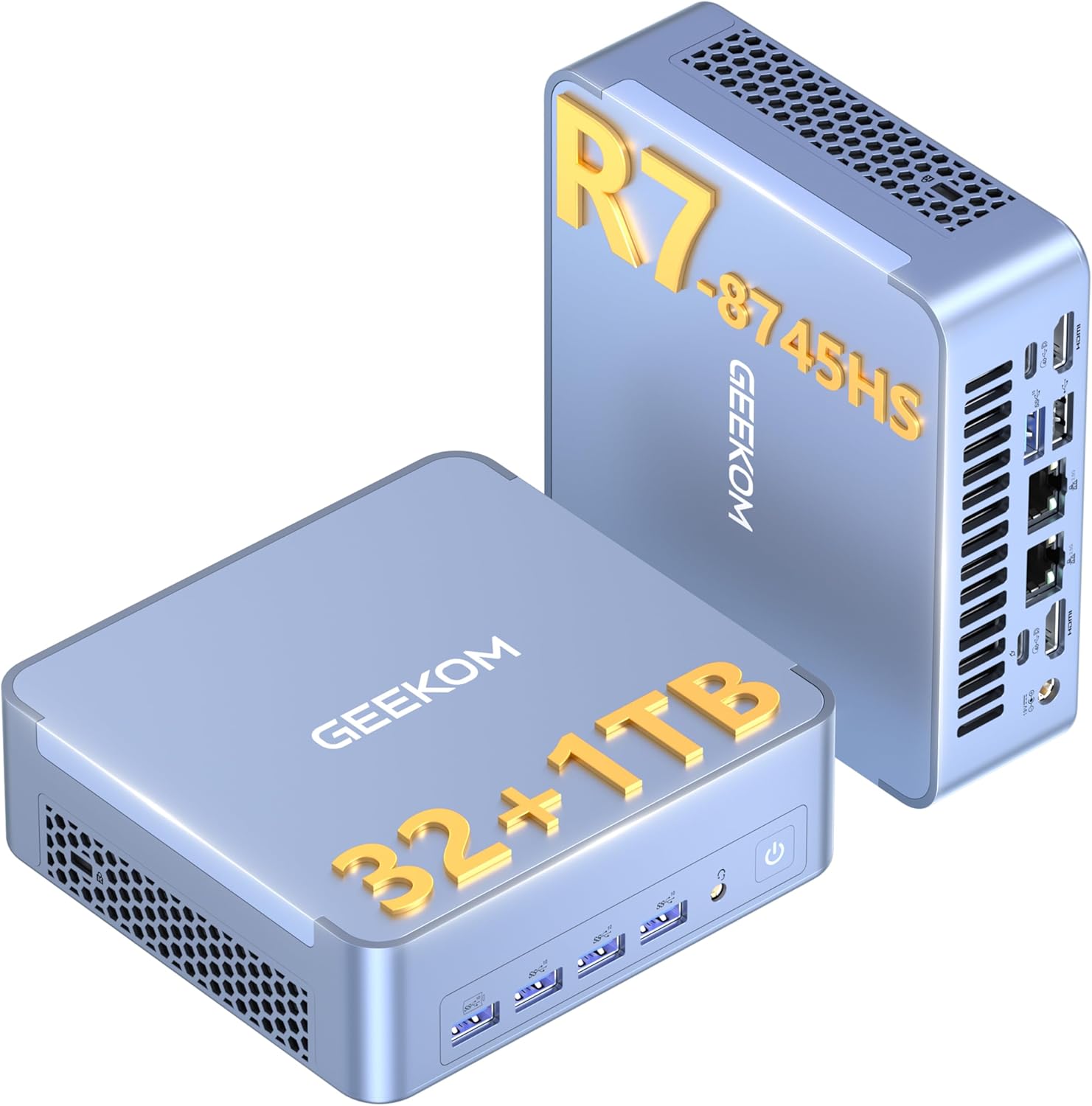
Price: $749 on Amazon
This is the GEEKOM AX8 Max, and it’s the mini PC I’d recommend to most people setting up OpenClaw for the first time. I’ve recommended this same chip (the Ryzen 7 8745HS) in my best mini PCs for home lab guide, and the reasons haven’t changed.
Specs:
- CPU: AMD Ryzen 7 8745HS (8 cores / 16 threads, up to 4.9GHz)
- RAM: 32GB DDR5-5600 — upgradeable to 64GB (2x SO-DIMM slots, not soldered)
- Storage: 1TB NVMe PCIe 4.0 SSD (M.2 2280, up to 4TB)
- GPU: AMD Radeon 780M integrated (RDNA 3, 12 CUs)
- Networking: Dual 2.5G LAN, WiFi 6E, Bluetooth 5.2
- Ports: 2x USB4 (40Gbps), 5x USB 3.2 Gen 2, 1x USB 2.0, 2x HDMI 2.0, SD card reader
- Power: 120W adapter, Windows 11 Pro included
Why this one: 32GB handles cloud-API OpenClaw with tons of headroom, and when you inevitably want to try running a local 7B or 13B model alongside it, you’ve got room. And when that’s not enough, you pop the bottom off and upgrade to 64GB in ten minutes. Try that with a Mac Mini.
The build quality is solid — aluminum chassis, virtually silent in quiet mode, and multiple reviewers report months of 24/7 operation without issues. At $749, you’re getting the same RAM as Apple’s $1,199 config, except yours is upgradeable.
The catch: No dedicated NPU for AI acceleration. The Radeon 780M handles basic inference, but if on-device AI processing is your priority, look at the GT15 Max below.
GEEKOM GT15 Max — the Intel AI compute play
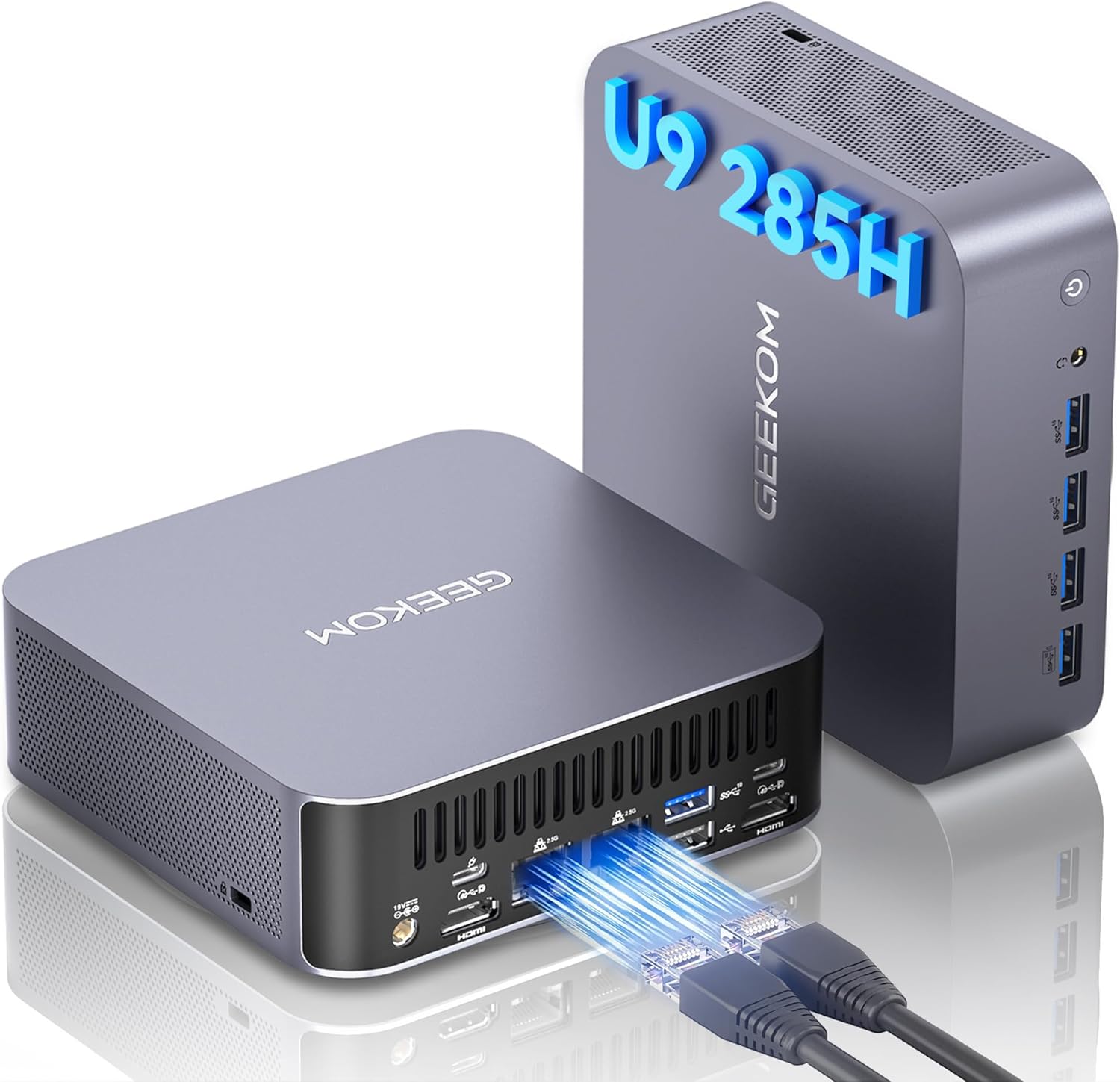
Price: $1,299 on Amazon
The GEEKOM GT15 Max is for people who want Intel’s latest AI silicon. The Core Ultra 9 285H has a combined AI compute of 99 TOPS across its CPU, GPU, and dedicated NPU. For context, Apple’s M4 does 38 TOPS total. The dedicated NPU itself handles 13 TOPS, but the real muscle is the Arc 140T GPU at 77 TOPS — AI workloads that can use GPU offloading will fly on this thing.
Specs:
- CPU: Intel Core Ultra 9 285H (6P + 8E + 2LP cores, 16 threads, up to 5.4GHz)
- RAM: 32GB DDR5-5600 — upgradeable to 128GB (SO-DIMM, not LPDDR)
- Storage: 1TB NVMe PCIe 4.0 + M.2 2242 SATA III slot (up to 2TB)
- GPU: Intel Arc 140T (8 Xe-cores, 77 TOPS INT8)
- NPU: 13 TOPS dedicated (99 TOPS combined CPU+GPU+NPU)
- Networking: Dual 2.5G LAN, WiFi 7 (Intel BE200), Bluetooth 5.4
- Ports: 2x USB4, 3x USB 3.2 Gen 2, 1x USB 2.0, 2x HDMI 2.0, 1x Mini DisplayPort 1.4, SD 4.0
- Power: 120W adapter, Windows 11 Pro included
Why this one: The combined 99 TOPS is the story here. As more AI frameworks add GPU and NPU offloading (and they’re adding it fast), having that much on-device compute becomes a real advantage. WiFi 7 and dual 2.5G LAN are nice bonuses, and the 3-year GEEKOM warranty doesn’t hurt for a 24/7 setup. One reviewer ran a full Kubernetes stack on this with 96GB of upgraded RAM and said it “handles everything smoothly without any noticeable slowdown.”
GEEKOM also explicitly calls out that this uses standard SO-DIMM DDR5 and not soldered LPDDR — which is a deliberate shot at Apple and the LPDDR crowd. I respect the pettiness.
The catch: At $1,299, you’re in Mac Mini M4 Pro territory. The value argument is weaker here — you’re paying for the combined AI compute, WiFi 7, and Arrow Lake architecture over the AX8 Max. Also worth noting: the 99 TOPS number is the combined total across CPU, GPU, and NPU. The dedicated NPU alone is only 13 TOPS. GEEKOM’s marketing isn’t lying, but it’s definitely not the whole picture. If you don’t need those extras, save $550 and get the AX8.
GMKtec EVO-T1 Ultra 9 — 96GB out of the box
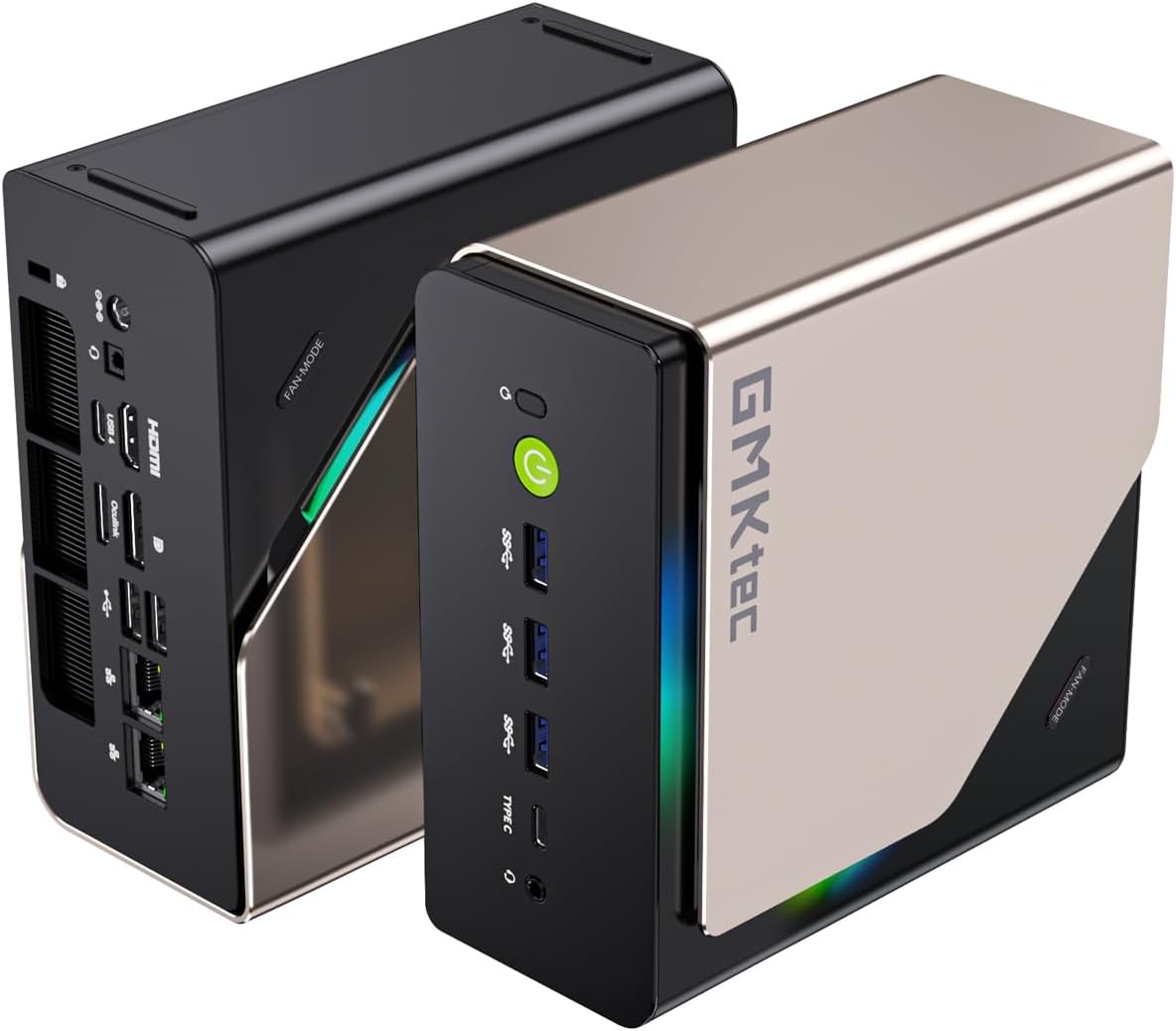
Price: ~$1,100 on Amazon (96GB/2TB config)
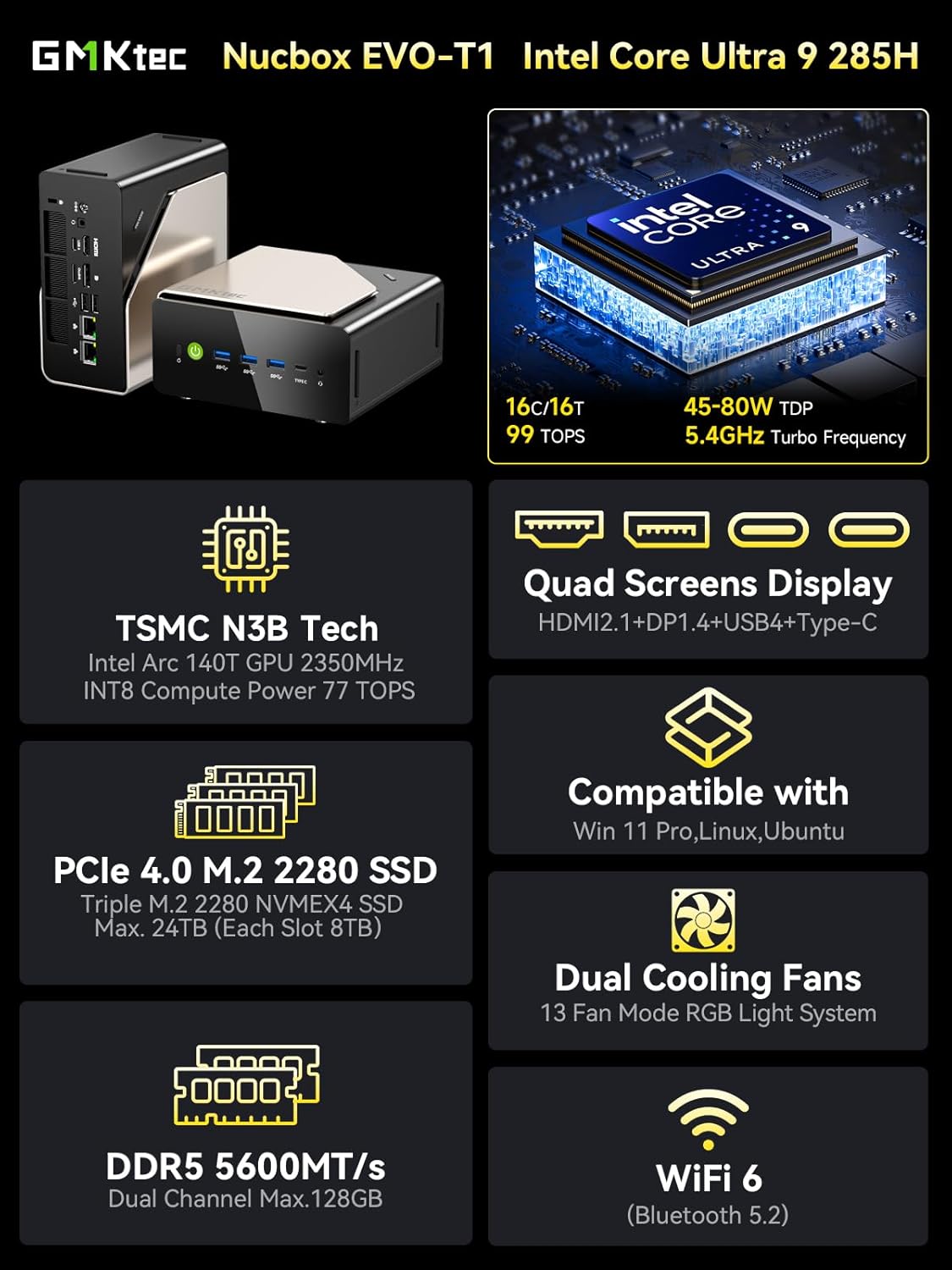
If you want to run OpenClaw and local LLMs simultaneously without playing the “will it fit in RAM?” game, the GMKtec EVO-T1 ships with 96GB of DDR5 and three M.2 slots (your 2TB SSD takes one, leaving two for expansion).
Specs:
- CPU: Intel Core Ultra 9 285H (6P + 8E + 2LP cores, 16 threads, turbo 5.4GHz)
- RAM: 96GB DDR5-5600 (SO-DIMM, upgradeable up to 128GB)
- Storage: 2TB PCIe 4.0 SSD + 3x M.2 2280 slots total (2 free for expansion)
- GPU: Intel Arc 140T + Oculink Gen4 x4 port for eGPU
- NPU: 13 TOPS (99 TOPS combined)
- Networking: Dual 2.5G LAN (Realtek RTL8125BG), WiFi 6, Bluetooth 5.2
- Ports: 1x USB4 (40Gbps), 3x USB 3.2 Gen 2 Type-A, 1x USB-C (PD/DP), 2x USB 2.0, HDMI 2.1, DisplayPort 1.4
- Power: 150W GaN adapter (~7W idle), Windows 11 Pro included
Why this one: 96GB. That’s it, that’s the pitch. You can run 30B+ parameter models locally while OpenClaw handles your messages in the background. The Oculink port means you can plug in an external GPU later if you want more inference power. One reviewer runs it 24/7 on Ubuntu as a server and says it’s been “running non-stop for 3 months” with no issues.
For context, getting 96GB in a Mac Mini means the M4 Pro at $2,199. The EVO-T1 gives you the same RAM for about half the price, and you can still upgrade it.
The catch: GMKtec’s BIOS situation is rough. Multiple reviewers call it “barren” and “a nightmare” to customize. Fan noise at higher RPMs is noticeable. Sleep mode is broken on some units. And the WiFi is only WiFi 6 (not 6E or 7). If you’re the kind of person who tweaks BIOS settings for fun, you’ll be frustrated. If you just install Ubuntu and forget about it, you’ll be fine.
GMKtec EVO-X2 Ryzen AI Max+ 395 — the local LLM beast
Price: ~$1,660 on Amazon
This is the nuclear option. The GMKtec EVO-X2 packs AMD’s Ryzen AI Max+ 395, which AMD calls “the most powerful x86 APU on the market.” It has 16 Zen 5 cores, 32 threads, and a massive Radeon 8060S iGPU with 40 RDNA 3.5 compute units that sits somewhere between an RTX 4060 and 4070 laptop. The unified 64GB memory pool means the GPU can access all of it for model inference — up to 48GB allocatable as VRAM.
Specs:
- CPU: AMD Ryzen AI Max+ 395 (16C/32T Zen 5, up to 5.1GHz, 4nm)
- RAM: 64GB LPDDR5X at 8000MHz (soldered — this is the trade-off)
- Storage: 1TB PCIe 4.0 SSD + 2x M.2 2280 slots (quick-release, up to 16TB total)
- GPU: AMD Radeon 8060S iGPU (40 RDNA 3.5 CUs, up to 48GB shared VRAM)
- NPU: 50 TOPS (XDNA 2), 126 TOPS combined CPU+GPU+NPU
- Networking: 2.5G LAN, WiFi 7 (MediaTek MT7925), Bluetooth 5.4
- Ports: 2x USB4 (40Gbps), 3x USB 3.2 Gen 2, 2x USB 2.0, HDMI 2.1, DisplayPort 1.4, SD 4.0
- Power: 230W adapter (3 modes: 54W quiet / 85W balanced / 140W performance), Windows 11 Pro included
Why this one: The user reviews tell the story better than the spec sheet. One reviewer reports running a 120B parameter model (GPT-OSS) at 50 tokens/second on Ubuntu with Vulkan. Another got 86 tokens/second on Qwen3-30B under Linux with llama.cpp. On Windows, the same model does about 70 t/s. A third reviewer says on Linux, you can access about 110GB of the memory pool for AI models (vs 64GB on Windows due to driver limitations).
If you want to run OpenClaw backed by serious local LLMs instead of cloud APIs — full privacy, zero per-request costs, no dependency on OpenAI’s uptime — this is the machine to do it on.
The catch: The RAM is soldered LPDDR5X. 64GB is your ceiling, period. It shares this weakness with the Mac Mini, which is ironic given this is supposed to be the alternative. The BIOS is also limited (a recurring GMKtec complaint), and one reviewer called it “effectively early-access hardware” due to software maturity. But for local AI inference, nothing else comes close for the money.
How they stack up
| Mac Mini M4 (24GB) | GEEKOM AX8 Max | GEEKOM GT15 Max | GMKtec EVO-T1 | GMKtec EVO-X2 | |
|---|---|---|---|---|---|
| Price | ~$999 | ~$749 | ~$1,299 | ~$1,100 | ~$1,660 |
| CPU | Apple M4 (10C) | Ryzen 7 8745HS (8C/16T) | Ultra 9 285H (16C/16T) | Ultra 9 285H (16C/16T) | Ryzen AI Max+ 395 (16C/32T) |
| RAM | 24GB (soldered) | 32GB (up to 64GB) | 32GB (up to 128GB) | 96GB (up to 128GB) | 64GB (soldered) |
| Storage | 512GB-2TB | 1TB (up to 4TB) | 1TB + M.2 SATA | 2TB + 2 free M.2 slots | 1TB + 2x M.2 (16TB max) |
| GPU | Apple 10-core | Radeon 780M | Arc 140T | Arc 140T + Oculink | Radeon 8060S (40 CUs) |
| NPU | 38 TOPS | — | 13 TOPS (99 combined) | 13 TOPS (99 combined) | 50 TOPS (126 combined) |
| Networking | 1x Gigabit, WiFi 6E | Dual 2.5G, WiFi 6E | Dual 2.5G, WiFi 7 | Dual 2.5G, WiFi 6 | 1x 2.5G, WiFi 7 |
| iMessage | Yes | No | No | No | No |
| RAM upgradeable | No | Yes | Yes | Yes | No |
| Idle power | ~6W | ~10W | ~10W | ~7W | ~15W (quiet mode) |
Let’s talk about iMessage
I’d be lying if I said iMessage doesn’t matter. For a lot of people, it’s the whole reason they want a Mac Mini for OpenClaw. The iMessage channel lets you text your AI assistant from your iPhone like you’re messaging a friend. It’s slick, it’s native, and it requires macOS.
If iMessage is your primary way of talking to OpenClaw, buy the Mac Mini. Seriously. No workaround on Linux will match the native integration.
But look at how most people actually use OpenClaw: WhatsApp, Telegram, Slack, Discord. All of these work identically on Linux and macOS. If you’re in the WhatsApp/Telegram camp (and based on OpenClaw’s Discord server, most users are), you’re paying the Apple tax for a feature you won’t use.
Running OpenClaw on Linux (it’s not hard)
If you’ve never set up a Linux server, this might sound intimidating. It’s not. Here’s the condensed version:
# Install Ubuntu Server 24.04 (download from ubuntu.com, flash to USB, boot)

# Update everything
sudo apt update && sudo apt upgrade -y

# Install Node.js (OpenClaw requirement)
curl -fsSL https://deb.nodesource.com/setup_22.x | sudo -E bash -
sudo apt install -y nodejs

# Clone and install OpenClaw
git clone https://github.com/openclaw/openclaw.git
cd openclaw
npm install

# Copy the example config and edit with your API keys + channel tokens
cp .env.example .env
nano .env

# Start OpenClaw (use pm2 to keep it running after you close the terminal)
sudo npm install -g pm2
pm2 start npm -- start
pm2 save
pm2 startup
That’s it. OpenClaw is running. Configure your WhatsApp or Telegram channel in the .env file, and you’ve got an always-on AI assistant for a fraction of the Mac Mini price.
Pro tip: If you want a web interface for managing your setup, install Portainer and run OpenClaw in Docker instead. I covered this approach in my self-hosting revolution post.
So which one should you buy?
I’ll make it simple:
- Just want OpenClaw with cloud APIs, on a budget? The GEEKOM AX8 Max at $749 is the answer. More RAM than the Mac Mini, upgradeable, dual LAN, done.
- Want combined AI compute and WiFi 7? The GEEKOM GT15 Max at $1,299 pushes 99 TOPS across CPU, GPU, and NPU.
- Running OpenClaw + local LLMs and need RAM now? The GMKtec EVO-T1 at ~$1,100 ships with 96GB. That’s half the price of a 96GB Mac Mini M4 Pro.
- Going all-in on local inference? The GMKtec EVO-X2 at $1,660 is the fastest mini PC you can buy for running large models locally.
- iMessage is non-negotiable? Get the Mac Mini. I won’t judge.
If I had to pick one for myself, it’d be the AX8 Max. Start with 32GB, get OpenClaw running, and upgrade the RAM when I inevitably fall down the local LLM rabbit hole. That’s just how these things go. (Also, make sure your partner is on board before another black box shows up on the desk. Or just get really good at hiding them, I speak from experience.)
NordVPN Worth paying for
I self-host a VPN for daily browsing, but for streaming, travel, and my wife's phone I keep a commercial one around. This is the one I've actually used.
Get the dealHappy clawing! 🦞
Last updated: February 2026