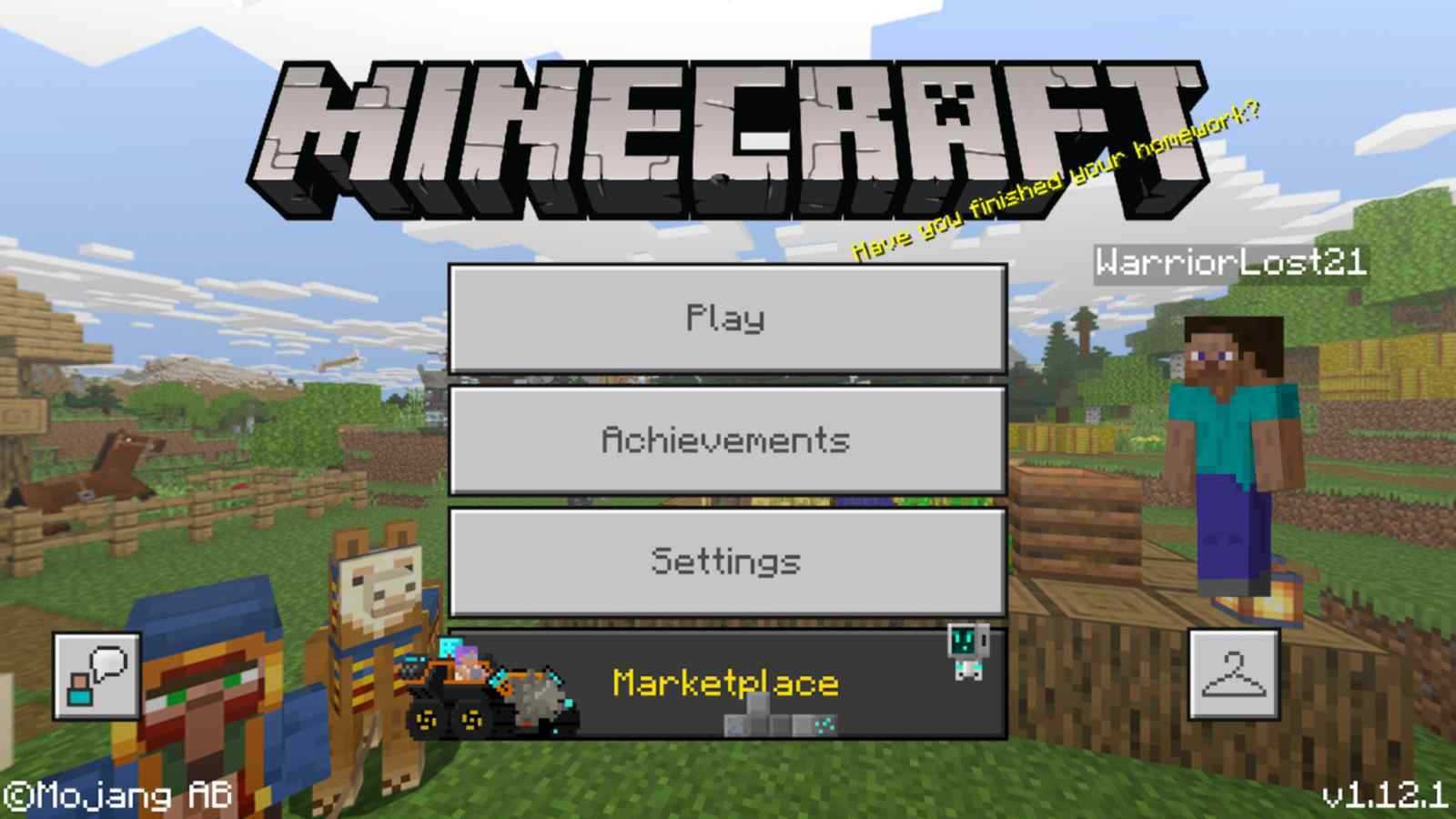
So here’s the thing. My nephew got Minecraft Pocket Edition for his birthday and immediately discovered Realms, Mojang’s official multiplayer hosting at $10/month for up to 10 players. Realms is fine, but $10/month for what amounts to a hobby server felt steep, and I had three different “free” cloud accounts I wasn’t using and a Raspberry Pi sitting in a drawer. Two hours later we had a Bedrock server he and his friends could connect to from any device. Total cost: $0.
This post is the three ways I’ve actually run free Minecraft PE/Bedrock servers, in roughly the order I’d recommend them. Each comes with real trade-offs around uptime, customisation, and how much terminal time you want to put in.
Quick orientation: the three options below trade convenience against control. Aternos is one-click and unreliable. A Raspberry Pi is reliable and home-bound. A cloud VPS is reliable and reachable from anywhere, with a small amount of terminal work. Pick the one that matches what you actually want.
Why your own server beats Realms
Realms is genuinely good for what it is, but a self-hosted server gives you four things Realms doesn’t.
More concurrent players. Realms caps at 10. A self-hosted PocketMine-MP server on a free-tier VM handles 20-30 without breaking a sweat, and a Pi 4 will get you to about 15.
Mods and plugins. PocketMine-MP supports a healthy plugin ecosystem. Realms supports zero plugins. If your nephew wants a teleport command or anti-grief protection, that’s only happening on a self-hosted server.
No subscription. Realms is $10/month forever. A self-hosted server is the cost of the cloud VM (free tier or ~$5/month) or your home electricity (negligible).
You own the world saves. Backup, restore, swap to a different host, edit the world file by hand, all yours. Realms saves are stuck in Mojang’s storage.
The downside: you’re now sysadmin. If the server goes down, no one’s coming to fix it but you. For a kid’s hobby server, that trade-off is fine; for a 50-player community, you’d want managed hosting.
Option 1: a free-tier cloud VM with PocketMine-MP
This is the option I recommend for most people. You get 99.99% uptime, the server’s reachable from anywhere on the internet, and the same VM can host other side projects.
Where to host it. Three sensible options.
- Google Cloud’s
e2-microalways-free tier: see my Google Cloud free WordPress post for the VM creation walkthrough. The VM that serves a blog can also host a 10-15 player Minecraft PE server. - AWS or Azure free trial credits: $300 from AWS, $200 from Azure, both valid for 12 months. After that, ~$5/month for a
t3.smallor B1s. Or migrate to Oracle’s free tier, which gives you 4 ARM cores forever. - A $5/month VPS at Hetzner or DigitalOcean: if “free with credits” feels uncertain, $5/month buys you a forever-stable home for the server.
Once you have a VM running Ubuntu (any recent LTS works), SSH in. The headless Pi setup and top 10 Linux commands posts cover the basic SSH workflow if you’re new to it.
Install PocketMine-MP. Use the official PocketMine-MP project for the server software:
# As a normal user (NOT root, the installer warns about this)
mkdir -p ~/minecraft && cd ~/minecraft

# Download and run the installer
curl -sL https://get.pmmp.io | bash -s -

# If curl isn't installed
wget -q -O - https://get.pmmp.io | bash -s -

# Make the start script executable and launch
chmod +x ./start.sh
./start.sh
The first run walks you through a setup wizard: server name, port (default 19132), max players, gamemode. Hit enter to accept the defaults if you’re not sure; you can edit them later in server.properties.
Run it as a systemd service so it survives reboots and restarts on crash:
# /etc/systemd/system/pocketmine.service
[Unit]
Description=PocketMine-MP Minecraft Bedrock server
After=network.target

[Service]
Type=simple
User=hemant
WorkingDirectory=/home/hemant/minecraft
ExecStart=/home/hemant/minecraft/start.sh
Restart=on-failure

[Install]
WantedBy=multi-user.target
Then:
sudo systemctl daemon-reload
sudo systemctl enable --now pocketmine
sudo systemctl status pocketmine
The server now starts on boot and respawns if it crashes.
Option 1 continued: opening port 19132 to the internet
Minecraft PE clients connect on UDP port 19132. By default, every cloud provider firewalls this. You have to open it explicitly. The VM also needs a public IP that doesn’t change.
On AWS:
- Allocate an Elastic IP and associate it with your EC2 instance (EC2 → Elastic IPs → Allocate → Associate).
- In the instance’s Security Group, edit inbound rules: add a Custom UDP rule for port 19132, source 0.0.0.0/0.
On Google Cloud:
- VPC Network → External IP Addresses → reserve a static address and assign it to the VM.
- VPC Network → Firewall rules → create a rule allowing UDP/19132 from any IP, applied to your VM’s network tag.
On Azure:
- Public IP Addresses → create a static IP and associate it with the VM.
- Networking → Inbound port rules → Add → Custom, UDP, port 19132, allow.
After both steps are done, test from your phone or laptop:
nc -uvz <your-vm-public-ip> 19132
# Connection to <ip> port 19132 [udp/*] succeeded!
Or open Minecraft on your device, go to Servers → Add Server, enter the public IP and port 19132, and connect. If the connection times out, the firewall rule isn’t applied or the protocol is set to TCP instead of UDP.
Option 2: a Raspberry Pi at home
If you already have a Pi sitting around and you don’t need the server reachable from outside your home network, a Pi is the cheapest, lowest-power option. The same PocketMine-MP install instructions work on Raspberry Pi OS.
What you’ll need:
- A Raspberry Pi 4 or 5 (the Pi 3 will struggle with more than 5-6 players).
- An SD card or, ideally, an external SSD; world saves get write-heavy.
- A reliable home internet connection.
- Your home router’s port forwarding admin page.
Install PocketMine-MP following the same steps as the cloud setup. The Pi just needs to be running a Unix-based OS; if you haven’t set it up, my headless Raspberry Pi setup post walks through the SSH-only first-boot.
Port forward 19132 on your router. Find your Pi’s local IP (ip addr show on the Pi, or check your router’s connected-devices list), then in your router’s admin panel:
- Add a port-forwarding rule: external port 19132, protocol UDP, internal IP = Pi’s local IP, internal port 19132.
Verify the forwarding worked using a port-checker like ping.eu/port-chk or nc -uvz from a friend’s network. The reachable port should be your home’s public IP, which you can get by visiting whatismyip.com.
The catch with home hosting: residential ISPs hand out dynamic IPs by default, which means your “public IP” can change at random times (usually after a router reboot). Two ways to handle this:
- Dynamic DNS: services like Duck DNS (free) or No-IP give you a stable hostname (
yourname.duckdns.org) that auto-updates to your current IP. Players use the hostname instead of the IP. Set up a cron job on the Pi to refresh the DNS every 5 minutes. - Static IP from your ISP: usually $5-10/month extra if your ISP offers it. Worth it if the server is community-scale; overkill for a 5-friend hobby server.
A Pi server also goes down with your home internet, your power, or the time you decide to clean the dust off the desk. For a kid’s home server, that’s fine; for your friend’s birthday party, less so.
Option 3: Aternos for the no-terminal path
Aternos is the “I do not want to touch a command line” option. They host the server for you, free, with a web UI for installing plugins, managing worlds, and starting/stopping the server.
Setup:
- Go to aternos.org and create an account.
- Pick “Bedrock” when creating your server.
- Hit the green “Start” button. Five minutes later, you have a server with a public hostname like
yourname.aternos.me:19132.
Why it’s not my main recommendation:
- The server shuts down after 5 minutes of zero players. Restarting requires logging into the Aternos web panel and clicking start, then waiting 30-60 seconds for the server to boot. For a casual server where players join and leave throughout the day, this is fine. For a planned game session, it’s friction.
- You don’t control the hardware. Aternos’s queue system means starting a server can take 5-30 minutes during peak hours. Your friends are sitting in the lobby waiting for the server to be ready.
- Limited customisation. Plugin choices are pre-vetted; world transfers between Aternos and a self-host are awkward.
If those trade-offs sound fine, Aternos is genuinely zero-friction. I’ve used it for one-off “I just want to mess around for an hour” sessions and it’s perfect for that. For a server that lives more than a week, the cloud VPS path is worth the one-time setup.
Picking between the three
| Criteria | Cloud VPS | Raspberry Pi | Aternos |
|---|---|---|---|
| Cost | Free tier or $5/mo | $0 (existing Pi) | Free |
| Uptime | 99.99% | Depends on home internet | 100% if used, 0% if idle |
| Players | 20-30 (free tier) | 10-15 (Pi 4) | 10-20 |
| Setup time | 30-60 min | 60-90 min | 5 min |
| Plugins / mods | Full control | Full control | Limited |
| Reachable from anywhere | Yes | Yes (with port forward) | Yes |
| Skill required | Basic Linux | Basic Linux + router | None |
For most people who landed on this post: cloud VPS, with the Google Cloud always-free e2-micro or Oracle’s free ARM instance. The setup time pays for itself within a week.
For more sophisticated multi-game-server setups, my running multiple game servers on a mini PC and ultimate guide to running Minecraft servers on a mini PC posts cover the next-level home setups. The same PocketMine-MP install works on those too.
Happy crafting! 🎮
Last updated: February 2025