I found my ROM collection in four places last month. One folder on the NAS, one on an old laptop that hasn’t booted since 2023, one on a microSD card living inside a handheld, and one on a USB stick labeled, I’m not proud of this, roms-final-2. Twenty years of dumping cartridges and discs, and my library management strategy was “copy everything everywhere and hope.”
Meanwhile my movies live in Jellyfin, my books live in Calibre, and my audiobooks have a whole dedicated app. Games were the last collection in my house without a proper server. RomM 5.0 finally fixed that, and it turned out the mini PC I already owned was overqualified for the job.
So what does RomM actually do?
RomM (ROM Manager) is Jellyfin for your game collection. You point it at a folder of ROMs, it scans everything, pulls covers and metadata from providers like IGDB and ScreenScraper, and gives you a genuinely pretty web UI where your dusty .sfc files suddenly look like a storefront library.
The docs list support for roughly 400 platforms, from the obvious consoles down to systems I had to look up. In practice that means whatever folder naming scheme your collection uses, RomM probably recognizes it.
The killer feature is what happens after the scan:
- Play in the browser: older platforms run directly in a browser tab via EmulatorJS, with Ruffle handling Flash games and a DOS player for the boomer-shooter era. SNES on a work laptop, no install, is exactly as dangerous for productivity as it sounds.
- For newer platforms, you download the file from your server onto whatever device has the horsepower and a native emulator.
- Save sync: introduced as a proper engine in 5.0. Your saves and save states live on the server, and companion apps sync them between devices.
- Then the extras pile up: RetroAchievements integration, netplay, a built-in ROM patcher for romhacks and translations, and collections you can slice however you want.
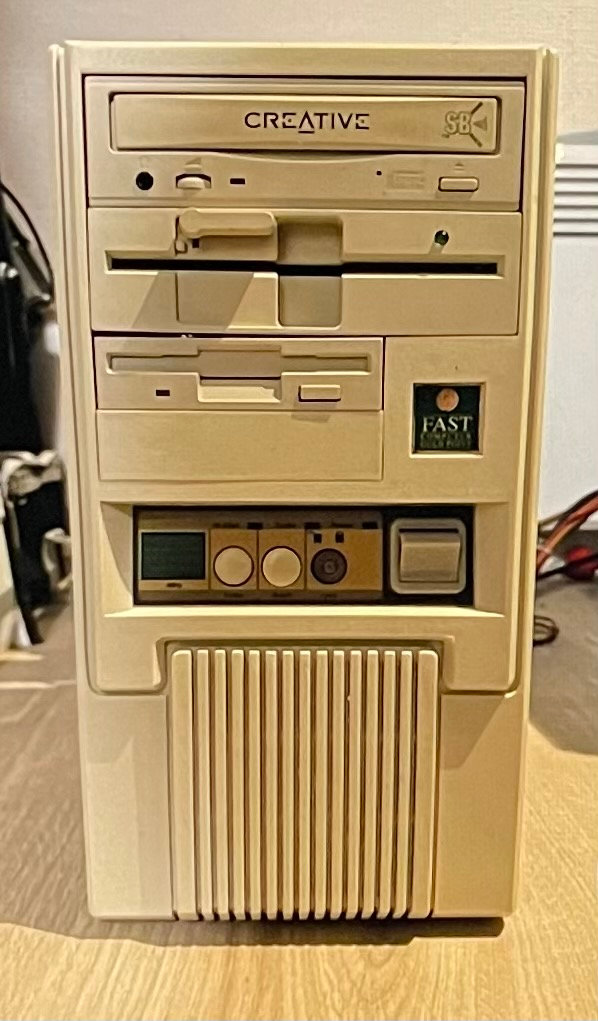
That DOS player hits different when the machine those games originally lived on is still in the house. Turbo button, two floppy drives, and a Creative CD-ROM with the Sound Blaster badge:
One thing to say plainly: RomM brings no games with it. It catalogs whatever you point it at. Dumping your own cartridges is the clean-conscience route, and what else ends up in that folder is between you and your ISP. Which, incidentally, is a good reason not to let your ISP watch:
NordVPN Worth paying for
I self-host a VPN for daily browsing, but for streaming, travel, and my wife's phone I keep a commercial one around. This is the one I've actually used.
Get the dealWhy the 5.0 release is the moment to jump in
RomM has been around since 2023, but the 5.0 release in July 2026 is a different project. Ground-up UI redesign, a matured save-sync engine, and the project crossed 10,000 GitHub stars around launch (it’s closing in on 12,000 as I write this). The pace hasn’t slowed either: 5.1.0 shipped on July 29 with the redesign still warm.
The save sync is what sold me. There’s an ecosystem of companion apps growing around the server: Argosy on Android, Freegosy on desktop, a Steam Deck plugin in testing, and Grout for handhelds running custom firmware. Start a game in the living room, pick up the handheld at bedtime, and your save state followed you there. That used to require a Syncthing setup and a prayer that two devices never wrote the same file. Now the server is the single source of truth for saves, which is exactly what a server should be.
The server side needs almost nothing
Here’s the part that surprised me, and it’s the reason this post isn’t telling you to buy an expensive box.
When you play a SNES game in the RomM web UI, the emulation runs in your browser, on the device you’re holding. When you play on a handheld, the handheld’s emulator does the work. All the server ever does is keep the catalog and hand out files when asked. It’s a librarian, not a bodybuilder. The RomM developer’s own guidance is that a plain HDD is more than enough for ROM storage, because nothing latency-sensitive ever touches the disk.
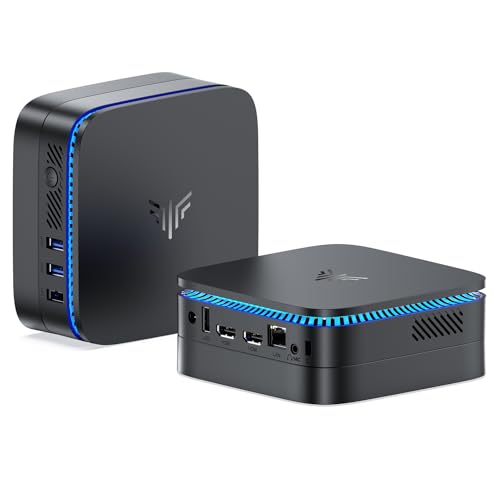
So the server tier of this build is whatever low-power box you already have. My homelab workhorses qualify, and if you’re starting from zero, the KAMRUI AK1PLUS is the cheapest sensible entry at $239.39: an N100 with 12GB of LPDDR5 and a 256GB SSD, which is more computer than a library server strictly needs. It idles in single-digit watts and runs RomM plus its MariaDB container without noticing (Valkey comes embedded in the RomM image).
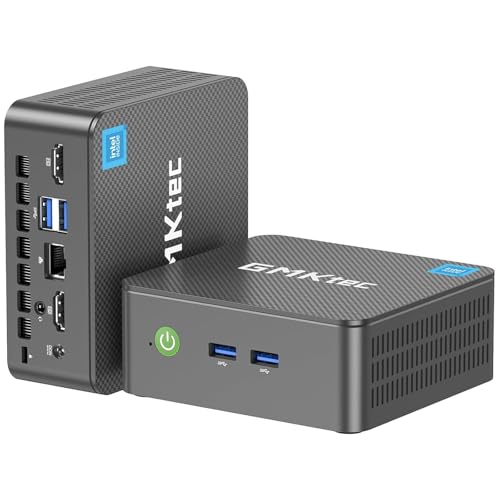
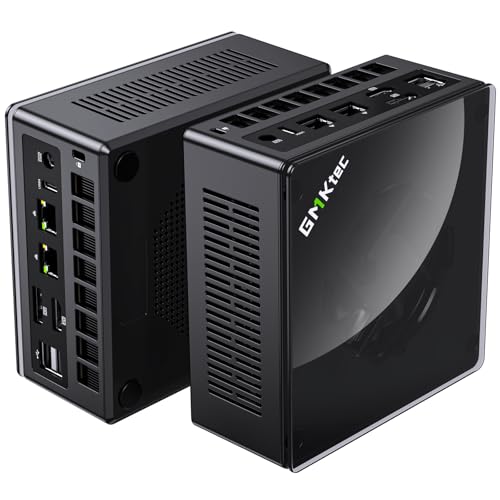
If you want a little more headroom for the rest of your container pile, the GMKtec G3 PRO at $329.99 trades up to 16GB of dual-channel RAM, a 512GB drive, and 2.5GbE networking. My own server already runs a Minecraft server and half a dozen other services, and RomM joined the pile without a blip.
Pro tip: if you already run any homelab box at all, don’t buy anything for the server side. RomM is two containers. The N100 recommendation is for people whose “server” is currently a USB stick labeled
roms-final-2.
Spinning it up with Docker Compose
The official quick start is good, so I’ll give you the shape and the gotchas rather than repeat it. The default stack is RomM plus MariaDB plus Valkey, and the reference docker-compose.yml looks like this (trimmed, the full version is in the docs):
volumes:
  mysql_data:
  romm_resources:
  romm_redis_data:

services:
  romm:
    image: rommapp/romm:latest
    restart: unless-stopped
    environment:
      - DB_HOST=romm-db
      - DB_NAME=romm
      - DB_USER=romm-user
      - DB_PASSWD=            # match MARIADB_PASSWORD below
      - ROMM_AUTH_SECRET_KEY= # generate with: openssl rand -hex 32
      - SCREENSCRAPER_USER=   # metadata provider credentials
      - SCREENSCRAPER_PASSWORD=
      - HASHEOUS_API_ENABLED=true
    volumes:
      - romm_resources:/romm/resources   # covers, screenshots
      - romm_redis_data:/redis-data
      - /path/to/library:/romm/library   # your ROMs
      - /path/to/assets:/romm/assets     # saves, states
      - /path/to/config:/romm/config
    ports:
      - 80:8080
    depends_on:
      romm-db:
        condition: service_healthy

  romm-db:
    image: mariadb:latest
    restart: unless-stopped
    environment:
      - MARIADB_ROOT_PASSWORD= # unique, secure password
      - MARIADB_DATABASE=romm
      - MARIADB_USER=romm-user
      - MARIADB_PASSWORD=
    volumes:
      - mysql_data:/var/lib/mysql
    healthcheck:            # depends_on above waits for this
      test: [CMD, healthcheck.sh, --connect, --innodb_initialized]
      start_period: 30s
      interval: 10s
      timeout: 5s
      retries: 5
Three things I learned so you don’t have to:
- Set up a metadata provider before your first scan. Scans technically work without one, but you get a library with no art and no metadata, and some companion-app integrations misbehave. ScreenScraper credentials are free and take two minutes.
- Folder structure matters. RomM expects platform folders with recognized names (
snes,ps2,gba, and so on) inside your library directory. I spent an evening renaming folders likeSNES Stuff (sorted)before the scanner would love me. Do this first. - Generate the auth secret properly:
openssl rand -hex 32, paste it in, done. Don’t leave it blank and wonder why sessions break.
The project’s issue tracker fills in the gaps my own library never hit, and it’s worth ten minutes before you commit a big collection. The most-upvoted open feature request right now is platform-level subfolders: RomM handles subfolders inside a single game’s folder, but a sorting scheme like ps2/Translations/ won’t scan, so flatten that before pointing the scanner at it. Metadata sources wobble occasionally too. A ScreenScraper credential hiccup during the RomM 5 beta (issue #3733) left scans quietly missing artwork even with other providers enabled, which is exactly why the compose above keeps Hasheous switched on rather than betting everything on one source. And a run of corrupt multi-disc zip downloads (issue #3526) had special characters in filenames as one culprit, so if a 1.2GB PSX download won’t unzip, look at the file names before blaming your network.
The save engine earned its maturity the same way: a v3.8 regression once had save states quietly not persisting (issue #1718, patched quickly). The maintainer’s standing advice covers all of it, and it’s the same advice as for any self-hosted service: back up the database and volumes before every upgrade. Saves you’ve carried since the SNES era deserve that much.
After docker compose up -d, you create the admin user in the web UI, kick off a scan, and then watch two decades of your life get cover art. The scan on my few-hundred-game library took minutes.
The play side is where the hardware money goes
The server is a librarian, but something still has to run the games natively once you get past the browser-friendly era. This is where you match hardware to ambition.
| Tier | Example box | What it comfortably emulates | Price when I checked |
|---|---|---|---|
| Browser-play only | Any N100 mini PC, even the server itself | 8-bit and 16-bit consoles, PS1-era, in a browser tab | $239 |
| Steam Deck class (Radeon 680M) | Used 680M mini PCs, Beelink SER5 MAX | GameCube, Wii, PS2 at upscaled resolutions | ~$200 used, $469 new |
| Radeon 780M class | GMKtec K8 Plus, Beelink SER8, Minisforum UM890 Pro | Everything above, plus playable Switch and PS3 in many titles | $799 to $975 |
| Dedicated GPU | See the Steam Machine post | Modern PC gaming, emulation is an afterthought | $1,000+ |
The middle tiers are the interesting ones. The Radeon 680M is an RDNA 2 part, the same GPU generation as the Steam Deck with more compute units, and the used market is full of 680M mini PCs because they were everywhere two years ago. I covered that class in the Steam Machine alternatives post, and everything there applies to emulation duty.
The 780M class is where I’d put the money if you want one box that handles the ambitious stuff. The GMKtec K8 Plus pairs a Ryzen 7 8845HS with its Radeon 780M for $809.98 right now, and the Beelink SER8 offers the same chip with 24GB of DDR5 and a 1TB SSD for $799. GameCube, Wii, and PS2 run clean at upscaled resolutions on this hardware. Owners routinely report playable Switch and PS3 emulation too, with the usual caveat that those two are famously title-dependent, so check compatibility lists for the specific games you care about before treating them as solved.
At the top of the integrated-graphics range sits the Minisforum UM890 Pro, $975 with a Ryzen 9 8945HS, 32GB of DDR5, a 1TB SSD, and dual USB4 ports. Same 780M GPU as the cheaper boxes, but the extra RAM and connectivity make it the pick if this machine is also going to be your desktop.
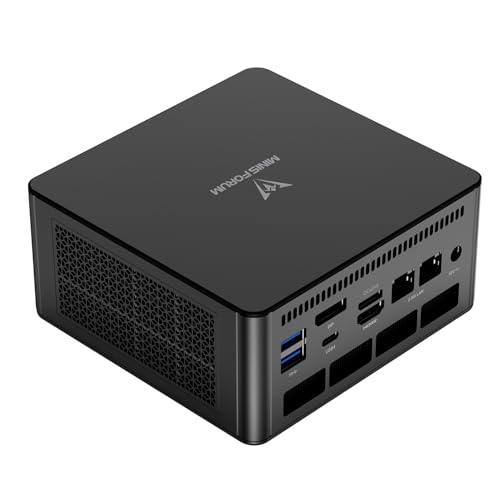
There’s also a budget path into this tier that I like a lot: the Minisforum UM790 Pro barebones is sitting at $351 as I write this, with the Ryzen 9 7940HS and its 780M but no RAM or SSD. If you have spare DDR5 SODIMMs and an NVMe drive in the parts drawer, that’s most of the performance for a fraction of the money. If you don’t, price the parts first, RAM isn’t the bargain it used to be.
Could I have just bought one expensive box for both jobs? Sure. But the two-box split means the library server stays on 24/7 drawing almost nothing while the gaming box only spins up when someone’s actually playing, and my electricity-bill trauma runs deep.
Controllers and storage, the cheap part of the build
Two small purchases rounded out the setup.
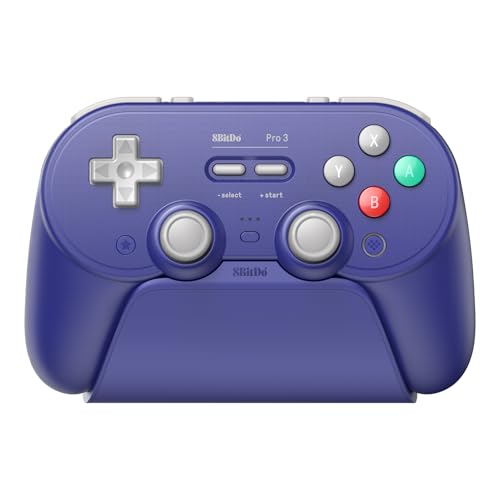
Controllers first, because playing Super Metroid on a keyboard is a crime. The 8BitDo Pro 3 is $59.99 and covers the “one controller for everything” role properly: TMR joysticks, Hall effect triggers, swappable buttons, a charging dock, and it pairs with Windows, SteamOS, Apple, and Android, so it follows you across every device RomM serves. For the proper retro feel, the 8BitDo SN30 Pro at $39.81 is shaped like the SNES pad your hands remember, with the sticks and triggers the originals never had. One of each covers a two-player couch.
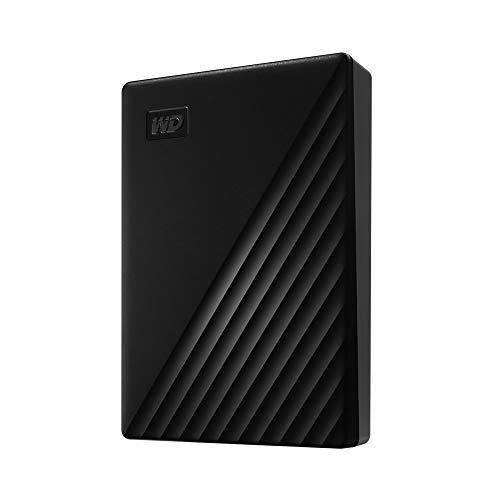
Storage is where the “HDD is fine” guidance pays off. Cartridge-era libraries are adorably small, a complete SNES set fits in less space than a single modern game patch. It’s disc-era collections that grow, since individual PS2 and Wii images run into multiple gigabytes each. A 4TB WD My Passport is currently $192.89 and holds more disc images than most of us will ever honestly dump, plus the saves and states RomM stores alongside them. If your drive travels in a backpack with a handheld, the LaCie Rugged 4TB at $209.99 is the drop-resistant version of the same idea.
FAQ
Is RomM legal? The software is open source and perfectly legal, and it ships nothing copyrighted. The ROMs are your responsibility: dumping games you own is the safest ground, and how you fill the folder beyond that is your call, not mine. If any of it travels the open internet, a VPN is cheap insurance.
Do I need a powerful server to run RomM? No, and this is the most misunderstood part. Emulation happens on the client device, in the browser or in a native emulator. The server just organizes and serves files. An N100 mini PC is comfortably overqualified.
Can I really play games in the browser? Yes, for older platforms. EmulatorJS cores cover the 8-bit through PS1-ish era well, and it’s shockingly pleasant for quick sessions. For GameCube and newer you’ll want a native emulator on capable hardware.
How does save sync work across devices? RomM 5.0’s save engine stores saves and states server-side, and companion apps (Argosy on Android, Freegosy on desktop, and others) sync against it. Play on one device, continue on another, no manual file shuffling.
What about my existing emulator setup? Nothing breaks. RomM sits alongside whatever you already use. Your handheld or HTPC keeps its native emulators and just gains a central library to pull from and sync saves against.
Resources
- RomM on GitHub and the official docs
- Steam Machine alternatives: mini PCs that game for less for the deep dive on gaming-tier boxes
- Best mini PCs for a home lab if the server side is your entry point
- Running multiple game servers on a mini PC for what else the library box can do with its spare cycles
My cartridges are finally all in one place, with cover art, on hardware that was already paid for. The USB stick has been ceremonially retired.
Happy rewinding! 🕹️
Last updated: July 2026