So here’s the thing. After twelve years of paying for fast laptops, the single biggest jump in how quickly I get work done came from a free skill: getting comfortable in a terminal. Not memorising every command. Just refusing to reach for the mouse when a keystroke would do.
This post is the short list. Ten Linux commands I actually run every single day, the small flags that make them useful, and the habits I picked up the hard way. If you’re new to Linux, work through them in order. If you’ve been at this a while, skim the examples and check whether your muscle memory still has gaps.
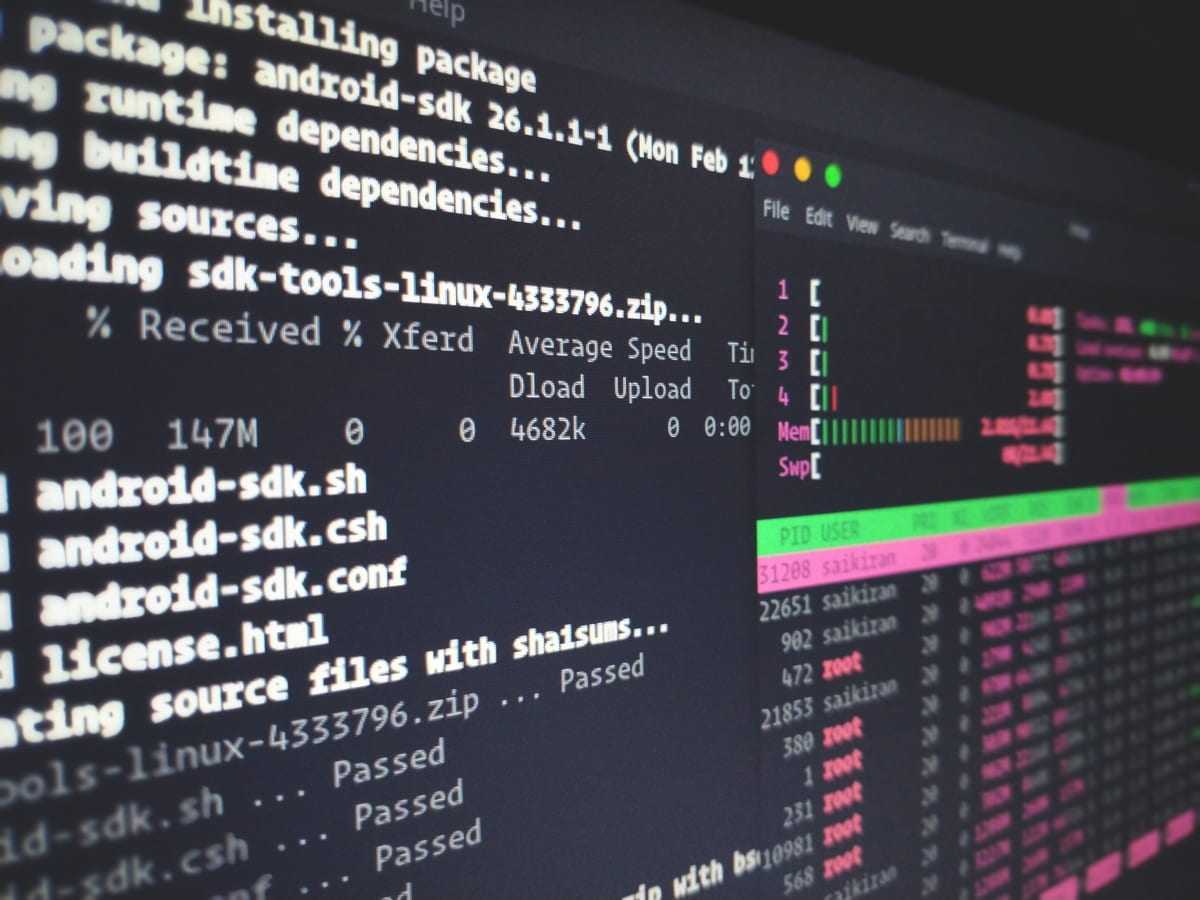
One rule that changed everything for me: whatever you want to do on a Unix system, try doing it from the command line first. Spend a minute Googling, twenty seconds reading the flags, then run it. Do this for a week and you stop reaching for the GUI altogether.
Here’s the list, ranked by how often I actually type them, not by some textbook order.
The man command, and why I open it before I run anything
man displays the manual page for a program. It is the single most underrated command on a Unix box, which is why it sits at the top of this list.
I open man before I run an unfamiliar command, before I trust a Stack Overflow answer, and any time a flag’s behaviour smells suspicious. The pages are organised into sections: general commands (1), system calls (2), C library functions (3), special files (4), file formats (5), games (6), miscellaneous (7), and system administration (8). Most of the time you only care about sections 1 and 8.
# Manual page for ssh
man ssh

# Same command exists in multiple sections? Pick one.
man 8 shutdown

# Quick "what is this?" lookup before opening the full page
whatis printf
# printf(1)  - formatted output
# xprintf(5) - extensible printf
If you read one extra man page a week for a year, you’ll know more about Linux than most people who claim it on a resume. The pages were written by the people who wrote the tools. They’re the source of truth, and they don’t have a chatbot’s hallucination problem. You can also browse them on the web at die.net’s man page mirror when you don’t have a terminal handy.
A small workflow tip: inside man, type / to start a regex search, n to jump to the next match, and q to quit. Most pages are long enough that scrolling beats reading top-to-bottom, and /EXAMPLES will jump you to the bottom of nearly every page where the actual usage lives. The intro paragraphs are usually historical context.
The ssh command for everything not on this laptop
ssh (Secure Shell) lets you log into a remote machine over an encrypted connection. If you self-host anything, run cloud VMs, or touch a Raspberry Pi, you live inside ssh. The protocol details are an interesting read on Wikipedia if you want to know how the handshake works.
# Log in with username + IP. Will prompt for password if no key set up.
ssh username@192.168.1.1

# Specify a private key directly instead of relying on ssh-agent
ssh -i /path/to/private/key username@192.168.1.1

# Verbose output, useful when a connection mysteriously fails
ssh -v username@yourdomain.com
Two habits that will save you pain. First, set up public key authentication and turn off password login. Passwords get brute-forced; keys don’t. Second, drop hostnames into ~/.ssh/config so you can type ssh pi instead of ssh -i ~/.ssh/id_pi pi@192.168.1.42 -p 2222 every time. A minimal ~/.ssh/config entry looks like this:
Host pi
  HostName 192.168.1.42
  User pi
  IdentityFile ~/.ssh/id_pi
  Port 2222
After that, ssh pi Just Works, and so does scp file.txt pi:~/, rsync, and any other tool that respects the SSH config.
If ssh is part of your daily life, you should also know about sshuttle, which turns SSH into a poor man’s VPN. It’s saved me on more than one client engagement when I needed to reach an internal service without setting up a real VPN. And if you’ve ever locked yourself out of a fresh server because you forgot to copy your key first, ssh-copy-id user@host is the one-line fix to remember.
ls, cd, and pwd: the three you’ll never stop typing
These three barely need an introduction, but the flags people skip are where the speed comes from.
ls lists files. cd changes directory. pwd prints the working directory. The trick is ls’s sorting and grouping flags.
# Show hidden files too
ls -a

# Long format: permissions, owner, size, mtime
ls -al

# Sort by modification time (newest first)
ls -alt

# Sort by mtime, oldest first. I use this constantly to find what I just saved.
ls -alrt

# Human-readable sizes
ls -alh
For cd, the two shortcuts I use without thinking: cd - jumps back to the previous directory (it’s the bash equivalent of alt-tab), and cd with no arguments takes you home. pwd mostly matters inside scripts, where you sometimes need an absolute path on the fly.
If you nest deep into a project tree often, look up pushd and popd. They maintain a directory stack, so you can pushd /etc/nginx, do whatever, then popd back to where you started. I went years without using them, then a coworker showed me, and now I can’t remember how I lived without.
If you’re brand new to file ops, the basic Linux file manipulation commands post walks through copy, move, find, and friends in detail.
su and sudo: switching identity without rebooting
su substitutes user identity. You’re logged in as nick but need to read something in jonas’s home directory? Switch user.
# Confirm who you are
whoami
# nick

# Become jonas (will prompt for jonas's password, unless you sudo)
sudo su jonas

whoami
# jonas
The pragmatic version most people actually use is sudo. Run a single command as root without leaving your shell:
# Run a single command as root
sudo apt update

# Open a root shell (use sparingly)
sudo -i
A small thing that bites everyone once: su - (with the dash) loads the target user’s environment, while plain su username keeps your current $PATH and shell variables. If node isn’t on PATH after switching, that’s why.
export, and the environment variables that quietly run your life
export sets environment variables for the current shell and any process it spawns. JAVA_HOME, PATH, EDITOR, every cloud SDK’s auth token, every KUBECONFIG you’ve ever fought with: all of them flow through export.
# Show all exported variables
export

# Filter
export | grep JAVA
export | grep PATH

# Set or override a variable. No spaces around the equals sign.
export JAVA_HOME='/usr/local/java/jdk-21/jre'
export M2_HOME="$HOME/.m2"

# Append to PATH (the safe way: keep what's already there)
export PATH="$HOME/bin:$PATH"
That last pattern is the one to remember. New shell users overwrite $PATH once, lose /usr/bin, and spend ten panicked minutes wondering why nothing runs. Always prepend or append; don’t replace.
Anything you export in a terminal session disappears when you close the window. To make it permanent, drop the line into ~/.bashrc or ~/.zshrc. For per-project secrets I keep a .env file in the project root and source it with set -a; source .env; set +a so every variable inside auto-exports. That habit alone has saved me from accidentally committing API keys at least four times.
kill, reboot, and shutdown: stopping things gracefully
Three commands for ending stuff: a single process, the whole machine, or the machine on a schedule.
reboot restarts the system. shutdown powers it off, optionally on a delay, optionally with a broadcast message to anyone logged in. I almost never reboot a production server without a reason. If a service is misbehaving, restart the service first. The number of times I’ve watched a junior engineer reboot a server to “fix” something that a systemctl restart nginx would have solved is depressing.
# Restart now
sudo reboot

# Power off now
sudo shutdown -h now

# Power off in 30 minutes
sudo shutdown -h +30

# Warn other users while shutting down
sudo shutdown -h +10 "Patching the kernel, back in 15."

# Reboot in 10 minutes (yes, shutdown can reboot too)
sudo shutdown -r +10

# Cancel a pending shutdown
sudo shutdown -c
When a single process won’t quit, kill sends it a signal. The two you’ll send 99% of the time are SIGTERM (15) and SIGKILL (9).
A SIGTERM is the polite version, equivalent to clicking the red close button. The process can clean up after itself, flush buffers, save state, and exit cleanly. A SIGKILL is non-ignorable; the kernel takes the process out without giving it a chance to save anything. Use SIGKILL only when SIGTERM doesn’t work, or you’ll lose data.
# Find the PID of a hung process
ps -ef | grep -i evernote

# Polite: ask it to exit
kill -15 54355

# Force: take it out
kill -9 54355

# Kill by name without finding the PID first
pkill -15 evernote

# Verify it's gone
ps -ef | grep evernote
A few signals worth knowing by number, because you’ll see them in scripts:
| Signal | Number | What it does |
|---|---|---|
| HUP | 1 | Hang up. Often used to reload config. |
| INT | 2 | Interrupt. What Ctrl-C sends. |
| QUIT | 3 | Quit and dump core. |
| KILL | 9 | Non-catchable, non-ignorable. |
| TERM | 15 | Default. Polite termination. |
If a process ignores SIGTERM repeatedly, that’s usually a bug, not a feature. Worth checking the application’s logs before reaching for -9. The other classic mistake: killing the wrong PID because you read the column header as PPID. ps -ef lists UID, then PID, then PPID. The PID is the second column. Get this wrong on a database and your night gets interesting.
grep, tail, and htop: the three I couldn’t leave off
Every “top 10” post has the author squeezing in extras at the end. This one is no different. These three round out my actual daily workflow, and leaving them off felt dishonest.
grep searches text. Use it everywhere: filtering logs, finding which file references a function, narrowing down ps output. The flags I use most:
# Recursive search through the current directory
grep -r 'TODO' .

# Case-insensitive
grep -i 'error' app.log

# Invert: lines that DON'T match
grep -v 'INFO' app.log

# Show line numbers
grep -n 'panic' main.go

# Combine: case-insensitive recursive search with line numbers
grep -rin 'deprecated' src/
Piped together with ls, ps, df, or anything that produces text, grep is half of what makes the shell fast.
tail -f watches a file as it grows. Live log tailing. tail -f /var/log/syslog is a session opener every time something breaks in production. The newer tail -F keeps following the file even if it gets rotated, which matters when logrotate is running. There’s a deeper dive on text-processing in the text manipulation commands post if you want the full toolbox.
htop is top with colours, scrolling, and tree view. Not always installed by default, but sudo apt install htop and you’ll never go back. F5 toggles tree view, F6 changes the sort column, F9 sends a signal to a process (so you can kill from inside the UI). I covered it along with the rest of the system-monitoring toolkit in common Linux commands for system monitoring.
A list of commands isn’t useful without the glue between them. Three pieces of syntax do most of the heavy lifting.
The pipe | sends one command’s output into another’s input. ps -ef | grep nginx | grep -v grep finds nginx processes without matching the grep line itself. Chains of three or four pipes are normal, not clever.
Output redirection sends results to a file. > overwrites; >> appends. command 2>&1 merges stderr into stdout (the older syntax that still works), or you can use &> in modern bash. A common pattern when running a long-lived process from a remote shell:
# Run in background, capture everything to a log, survive logout
nohup ./long-running-job.sh > job.log 2>&1 &
Backticks (or the modern $(...) form) substitute a command’s output inline:
# Use the current date in a filename
cp config.yaml "config-$(date +%Y%m%d).yaml.bak"
Once these become reflexes, the difference between you and someone slow at the terminal isn’t raw speed; it’s that you stop noticing the terminal at all. It just becomes how you tell the computer what to do.
Memorising commands is the easy part. Getting fast is mostly about three habits.
First, every time you Google a command, run man <command> immediately after to fill in the gaps. The Stack Overflow answer tells you the magic incantation; the man page tells you why it works, which means you can adapt it next time instead of Googling again.
Second, alias the commands you type more than five times a day. alias ll='ls -alh', alias gs='git status', alias k=kubectl. Drop them in your ~/.zshrc (or ~/.bashrc). Two-letter aliases compound over a year of typing; I’d estimate I save 10 minutes a day on the ones I’ve kept for years.
Third, refuse to use the GUI for tasks you can do in a terminal. It feels slow at first. Within a month it’s faster. Within six months you’ll feel cramped any time you have to drive a file manager. The terminal forces you to know what’s actually happening, which makes you better at debugging when things go sideways.
If you want to keep going from here, my next stops were text-manipulation tools, file-manipulation basics, and system monitoring. Together they cover roughly 80% of what I do in a shell on any given day.
Frequently asked questions
What’s the difference between kill -9 and kill -15?
kill -15 (SIGTERM) asks the process to exit cleanly. The process can finish writing to disk, close connections, and shut down properly. kill -9 (SIGKILL) tells the kernel to forcibly remove the process; it gets no chance to clean up. Always try -15 first. Reach for -9 only when the process is genuinely stuck.
Do I need sudo for every command?
No. Use sudo only for actions that change system state: installing packages, editing system config files, restarting services, mounting drives. Anything that just reads files in your home directory or runs your own programs should never need root. Running everything as root is a security and recovery risk.
Why does ssh keep asking for a password every time?
Because key-based authentication isn’t set up. Generate a key with ssh-keygen -t ed25519, then run ssh-copy-id user@host to install it on the remote machine. After that, ssh user@host logs you in without prompting. Then disable password login on the server’s /etc/ssh/sshd_config for safety.
Where do I make a shell alias permanent?
Add the alias line to ~/.bashrc (bash) or ~/.zshrc (zsh) and either restart the shell or run source ~/.zshrc. Aliases set in the current terminal alone disappear when the window closes.
Is man still useful when ChatGPT exists?
Yes, more than ever. Chatbots hallucinate flag names that don’t exist; man is the source code’s authoritative documentation. The fastest workflow is asking a chatbot for the rough shape of a command, then opening man to verify the flags before you run it.
Happy shelling! 🐚
Last updated: February 2024